Setting up the command line on Windows
Windows only
This is for Windows users only. You'll just use Terminal if you're on macOS, you can skip this.
Most of the command-line instructions you'll find on the internet (and in class!) are written for macOS and Linux. Windows has its own command lines – Command Prompt and PowerShell – but they speak a different language, so ls and rm -rf and export and friends don't work the way the tutorials say they will.
To fix that, we're going to install two things:
- Git Bash, a command line that speaks the same language as macOS. It comes with Git for Windows, so we get
gitfor free. - Windows Terminal, the nice modern window we'll run Git Bash inside of. It has tabs, copy and paste that works like you'd expect, and it plays nicely with Python.
Used to using Cmder? Git Bash + Windows Terminal replaces it. Cmder Full was actually shipping Git Bash's tools under the hood, we're just cutting out the middleman.
Installing Windows Terminal
If you're on Windows 11, Windows Terminal is already installed. Search for Terminal in the Start Menu to make sure it's there.
If you're on Windows 10, install Windows Terminal from the Microsoft Store.
Installing Git for Windows
Download Git for Windows from git-scm.com/downloads/win. You want the 64-bit Git for Windows Setup.
Run the installer. There are a lot of screens! You can click Next on almost all of them, but pay attention to these two:
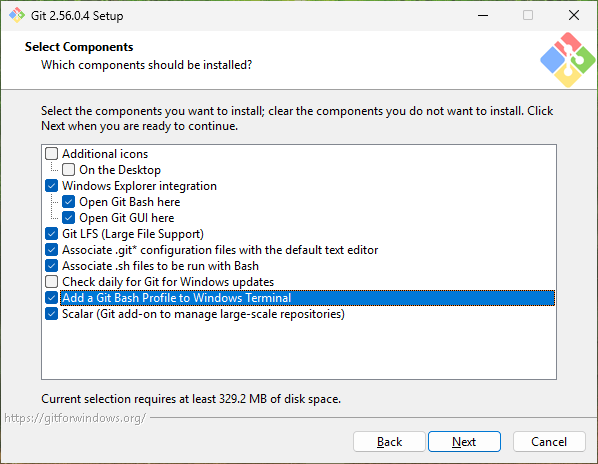
Select Components: check the box for Add a Git Bash Profile to Windows Terminal. It's not checked by default, and it's the important one!
Choosing the default editor used by Git: pick Use Visual Studio Code as Git's default editor. The default is Vim, which is famously hard to escape.
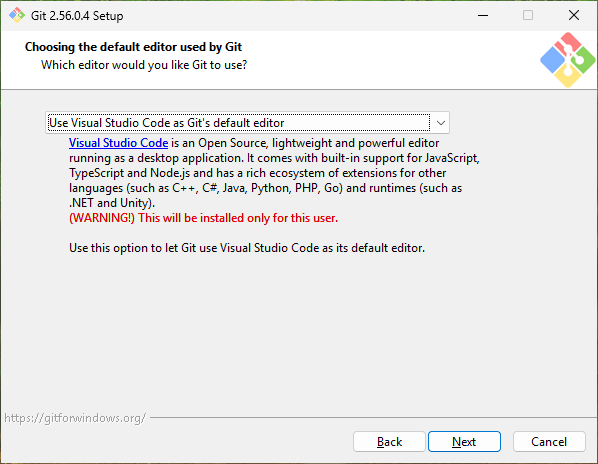
If the Next button is greyed out after picking Visual Studio Code, it means VS Code isn't installed yet. Close the installer, install VS Code, then run the Git installer again.
Leave everything else as-is and click Install. When it's done, uncheck View Release Notes and click Finish.
Making Git Bash the default
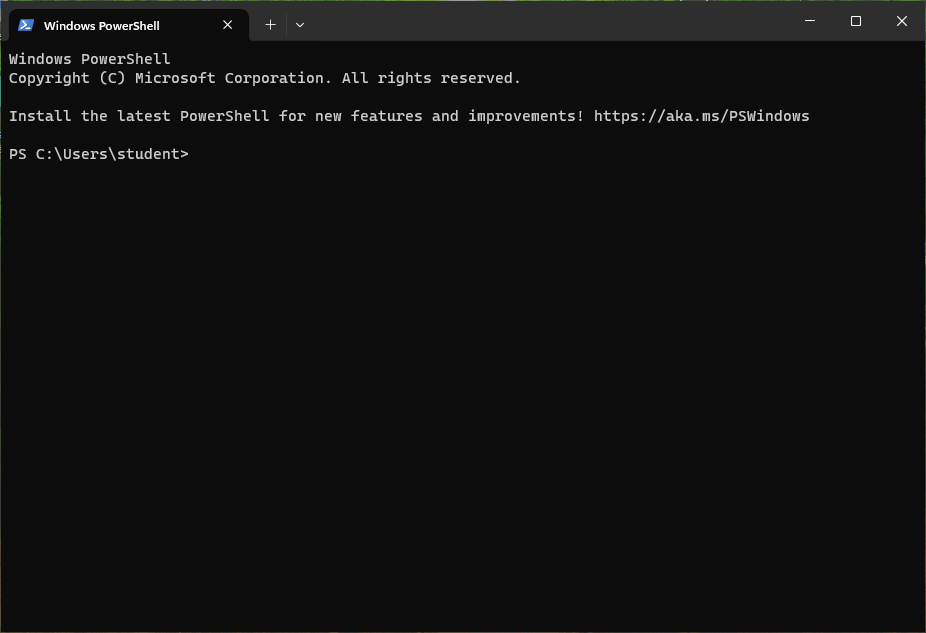
Open Windows Terminal. It probably opened PowerShell, which is not what we want! Let's change that.
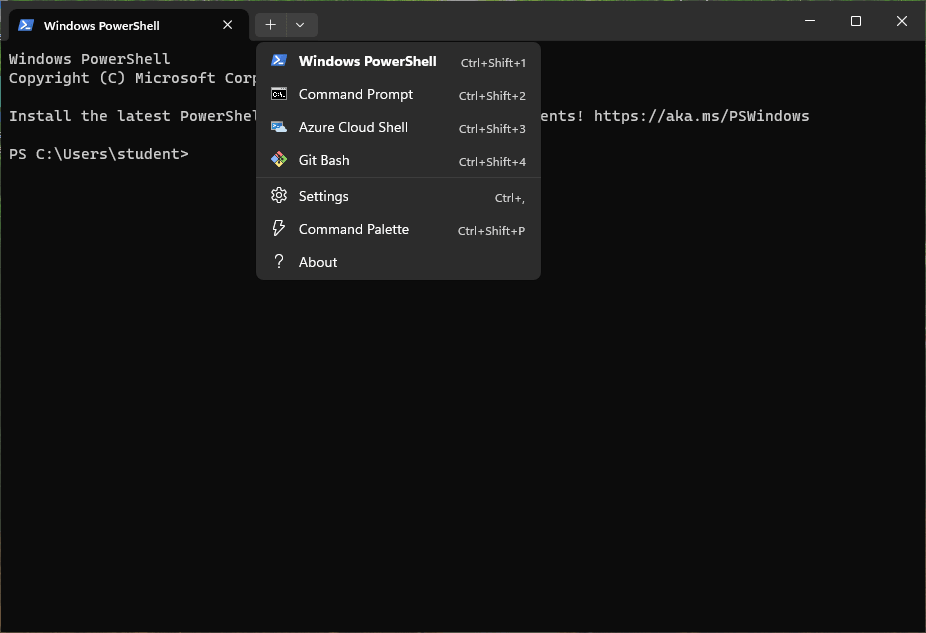
Click the little down arrow next to the tabs at the top and select Settings.
On the Startup page, change Default profile to Git Bash, then click Save in the bottom right-hand corner.
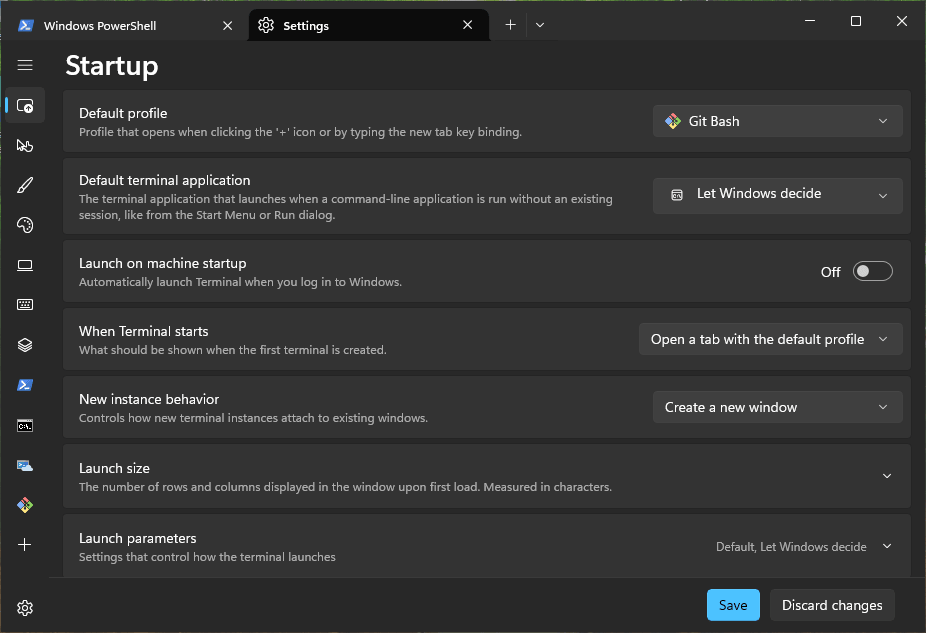
Don't see Git Bash in the list?
Close Windows Terminal and run the Git for Windows installer again. This time make sure Add a Git Bash Profile to Windows Terminal is checked.
Now close Windows Terminal, and open it again.
Confirm it worked
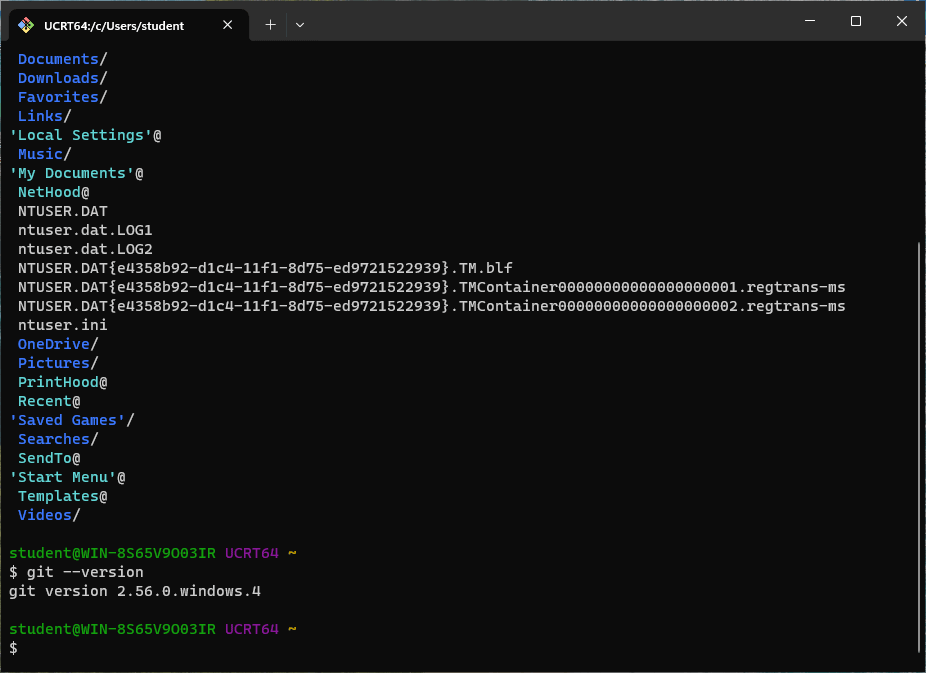
The new window should say UCRT64 ~ in it, in purple and yellow. (Some computers say MINGW64 instead – same thing!) That means you're in Git Bash!
Run the following command to see where you are:
It should print /c/Users/yourname. This is your home directory, which Windows normally calls C:\Users\yourname. Git Bash just writes it a little differently.
Then run:
You should see a list of files and folders, including Downloads and Documents. You'll also see some weird stuff like NTUSER.DAT – that's normal, just ignore it.
Finally, check that git came along for the ride:
If it prints a version number, you're all set.
From now on
Whenever these instructions (or I!) say "open the command line," that means open Windows Terminal, which will automatically open Git Bash.
If you ever end up somewhere that says PS C:\Users\yourname> – that's PowerShell – or C:\Users\yourname> – that's Command Prompt – you're in the wrong place! Close it and open a new Windows Terminal window, or click the down arrow and pick Git Bash.